About Team Member Management
Team Members are users who have access to the Iru Web App. Administrators can adjust the access level, edit details, and remove other Team Members (suspend first, then delete).
When using SSO to sign into Iru, the team member’s account must be created in the Access settings under Admin Team to sign into the Iru web app.
How It Works
Team member management allows administrators to control access levels, edit user details, and transfer account ownership within the Iru platform. To help a team member regain access (for example, if they lost their passkey), use Manage authenticators in Access—see Passkeys & Social Login.
Change a Team Member’s Account Permissions
Navigate to the Account Menu Button
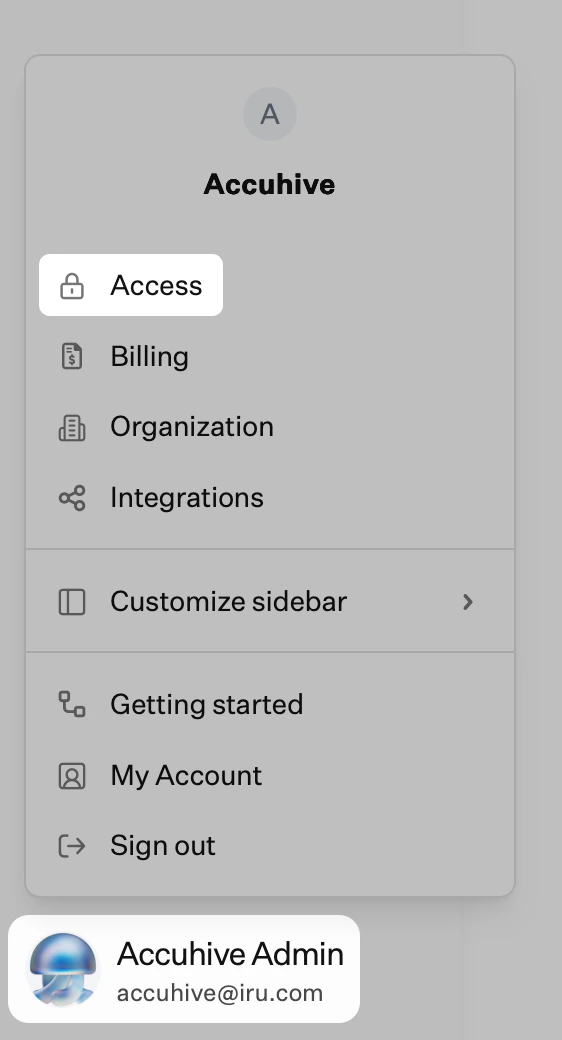
In Iru Endpoint, in the sidebar, click the Account Menu Button.
Access Authentication Settings
Click the Access option in the menu. Change Access Level
On the Access page, under Team Members, select the Access Level drop-down for the user in the Role column, then choose the level you want.
Edit a Team Member’s Details
Navigate to the Account Menu Button
In Iru Endpoint, in the sidebar, click the Account Menu Button.
Access Authentication Settings
Click the Access option in the menu. Open the User Menu
Click the ellipsis (⋮) next to the Team Member you wish to edit.
Edit User
From the ellipsis (⋮) menu, select Edit user.
Edit and Save
Edit the first or last name of the Team Member in the displayed text fields, then click Save.
Delete a Team Member
You must suspend a user before the Delete user menu option is available.
Navigate to the Account Menu Button
In Iru Endpoint, in the sidebar, click the Account Menu Button.
Access Authentication Settings
Click the Access option in the menu. Open the User Menu
Click the ellipsis (⋮) next to the user you want to remove.
Suspend User
From the ellipsis (⋮) menu, select Suspend user.If you suspended the wrong user, or you want to restore access without deleting them, click the ellipsis (⋮) next to that user, then select Unsuspend user.
Open the User Menu Again
Click the ellipsis (⋮) next to the same user again.
Delete User
From the ellipsis (⋮) menu, select Delete user.
When you remove an Admin user, any API tokens they created will be deleted. Their name will also be removed from all activity in the Iru Web App.
Transfer Account Ownership
The Account Owner can transfer ownership to any admin on their Iru team.
Navigate to the Account Menu Button
In Iru Endpoint, in the sidebar, click the Account Menu Button.
Access Authentication Settings
Click the Access option in the menu. Make Account Owner
Click the ellipsis (⋮) on the right-hand side of the admin to whom you wish to assign ownership, then select Make Account Owner.